9 min
How to Test a Keyboard Properly
A key that seems dead is usually not a broken switch. Test in the right order — registration, rollover, chatter, latency, feel — and you find the real fault.
A key that does nothing feels like a hardware fault, and it often is not. Between your finger and the page there are seven places a key press can stop, and most of them can be ruled out in under a minute each.
11 min read · updated 13 September 2026 · links to 7 tools
Press a key and a small circuit closes inside the switch. The keyboard's controller finds it on a grid of wires, its firmware decides what the press means, and the result travels over USB, Bluetooth or a wireless dongle to the computer. The operating system applies your layout, your accessibility settings and any remapping software. The browser takes the shortcuts it keeps for itself. Only what is left reaches the page.
Each layer can stop a key, and each leaves a different fingerprint. That is why guessing is slow and working through the layers in order is quick.
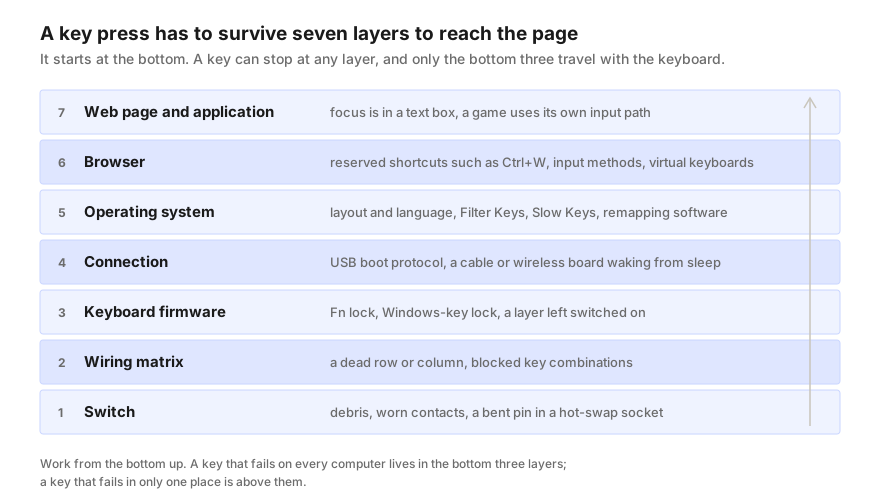
Before touching anything, try the key on a second computer, or at least in a second browser. It takes a minute and it removes four layers from the investigation at once.
If the key fails everywhere, the fault is in the switch, the matrix or the keyboard's firmware, because those are the only layers that came with you. If it works somewhere else, the keyboard is fine and the answer is in the operating system, the browser or the program on the machine where it fails.
Open the keyboard test on both machines. It shows every key the browser receives and, for each one, its key, code and location, so you can see not just whether a key arrives but what arrives.
A single dark key on a keyboard that works everywhere else is usually the switch itself. Crumbs and dust under the keycap are the most common cause by a distance, and compressed air fixes more keys than any replacement. On a hot-swap mechanical keyboard, pull the switch and look at its two metal pins: one bent flat during installation is enough to break the circuit.
The pattern matters more than any single key. When a whole row or a whole column of keys stops together, the fault is not a switch but the matrix those keys share — a cracked trace, a lifted solder joint or a loose ribbon connector inside the case. No amount of cleaning helps, and the keyboard needs opening or replacing.
The matrix also explains a subtler failure: a key that works alone but disappears when it is pressed with certain others. That is blocking, and the ghosting test checks exactly those combinations.
Many keyboards change what a key sends without telling the computer anything. A key can register perfectly and still look broken because of one of these.
A wireless keyboard that has gone to sleep often uses the first key press only to wake up, so that press never arrives. If the first letter of every sentence after a pause goes missing, the connection is the suspect, not the key.
Wired keyboards have their own version. Before an operating system loads, a computer talks to a keyboard using the simple USB boot protocol, which carries six ordinary keys at a time, and some keyboards stay in that mode. Unpowered hubs, front-panel ports and KVM switches can also drop or delay keys. Plugging straight into a port on the back of the computer rules all of that out.
This is where most "dead" keys on a working keyboard turn out to be, because several of the causes are switched on by accident.
Browsers keep some keys for themselves and act on them before a page is told anything. Ctrl+W or Cmd+W closes the tab, Ctrl+T opens one, and F11 toggles fullscreen in many browsers. The operating system takes others first: Alt+Tab, Win+L, Cmd+Tab and Cmd+Space never reach a page at all.
Two quieter cases matter for anyone typing in another language or on a phone. While an input method is composing characters, a browser reports keys with a placeholder key code rather than the physical key. And most on-screen keyboards on phones do not report a physical key position at all. A tester that reports those events honestly will show them as unidentified rather than inventing a key.
The last layer is the most mundane and the most often forgotten: where focus is. A key pressed while a different window, tab or text box has focus goes there instead. A web page cannot see a key pressed while you are typing in the address bar.
Games add a twist. Many read the keyboard through a lower-level input path than a browser does, so a key can behave differently in a game and on a web page. When a key works in the browser test and fails only in one game, check that game's key bindings and any overlay software running alongside it before suspecting the keyboard.
| What you notice | Most likely layer | What to check |
|---|---|---|
| One key dead on every computer | Switch | Debris under the keycap; a bent pin on a hot-swap switch |
| A whole row or column dead | Wiring matrix | A connector or trace inside the keyboard |
| A key fails only held with others | Wiring matrix | Blocking — run the ghosting test |
| F-keys do media or brightness instead | Firmware | Fn Lock |
| Numpad sends arrows and End | Firmware | Num Lock is off |
| First press after a pause is lost | Connection | A wireless keyboard waking from sleep |
| Keys sometimes do nothing on one PC | Operating system | Filter Keys or Slow Keys |
| A key types the wrong character | Operating system | The language layout, or remapping software |
| A shortcut closes the tab instead | Browser | A reserved browser shortcut |
| Works in the test, fails in one game | Program | That game's bindings and any overlay |
If the key fails on every computer, with nothing plugged in between, after cleaning — then it is the keyboard, and the choice depends on the design. A hot-swap mechanical keyboard needs only a new switch. A soldered mechanical board needs a switch desoldered, which is a modest repair for someone with the tools. A membrane keyboard or a laptop keyboard with a dead key is usually a replacement.
Before sending a keyboard back, save the evidence. The keyboard test lets you download a summary of which keys registered in a session — useful for a warranty claim, and it contains no record of what you typed.
A key that seems dead is usually not a broken switch. Test in the right order — registration, rollover, chatter, latency, feel — and you find the real fault.
A held key repeating, a worn switch bouncing and a fast double tap all look like a key firing twice. How each one shows up, and how to tell them apart.