12 min
Pixels, DPI and Why Your Image Is Too Big
Pixels are the only dimension an image really has. DPI is a printing instruction, aspect ratio decides what is cropped, and file size is separate again.
A new 1 TB drive appears in Windows as 931 GB. A 100 Mbps connection downloads at about 12 MB/s. Nothing is missing and nobody is short-changing you: in both cases the number on the box and the number on the screen use different units that happen to share a name.
8 min read · updated 17 September 2026 · links to 7 tools
Computers store data in powers of two, so early software counted memory in blocks of 1,024: a “kilobyte” of 1,024 bytes was close enough to a thousand that nobody minded. Everywhere else in science, kilo means exactly 1,000. At kilobyte scale the two meanings differ by only 2.3%, but the difference compounds with every step up.
In 1998 the International Electrotechnical Commission gave the binary units their own names — kibibyte, mebibyte, gibibyte, tebibyte, written KiB, MiB, GiB and TiB — so that KB, MB, GB and TB could mean powers of 1,000 without ambiguity. Drive makers, macOS and most network equipment use the decimal meaning. Windows still counts in binary and shows the old names.
| Step | Decimal (drive box) | Binary (Windows) | A drive looks smaller by |
|---|---|---|---|
| Kilobyte | 1,000 bytes | 1,024 bytes | 2.3% |
| Megabyte | 1,000,000 bytes | 1,048,576 bytes | 4.6% |
| Gigabyte | 1,000,000,000 bytes | 1,073,741,824 bytes | 6.9% |
| Terabyte | 1,000,000,000,000 bytes | 1,099,511,627,776 bytes | 9.1% |
Every drive loses the same share to the change of units at the same scale, so the “missing” space grows with the drive. The figures below are the binary sizes of drives sold in decimal units, before anything is installed.
| On the box | Bytes | In binary gigabytes (GiB) | Looks smaller by |
|---|---|---|---|
| 128 GB | 128,000,000,000 | 119.2 | 8.8 GB |
| 256 GB | 256,000,000,000 | 238.4 | 17.6 GB |
| 512 GB | 512,000,000,000 | 476.8 | 35.2 GB |
| 1 TB | 1,000,000,000,000 | 931.3 | 68.7 GB |
| 2 TB | 2,000,000,000,000 | 1,862.6 | 137.4 GB |
| 4 TB | 4,000,000,000,000 | 3,725.3 | 274.7 GB |
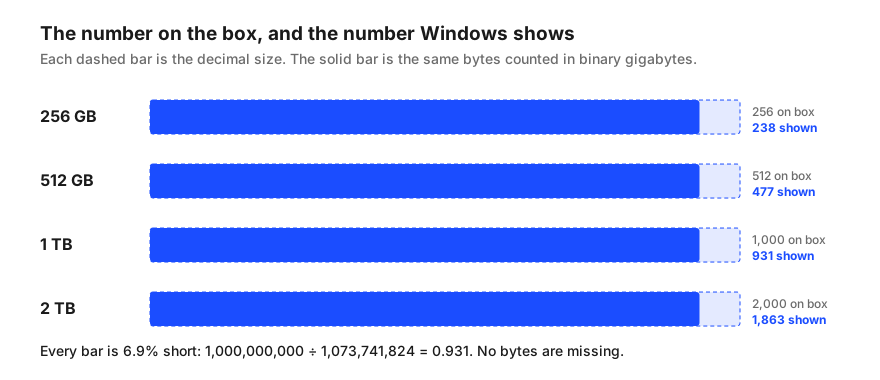
The change of units explains the big gap, and it is not space you have lost. Two smaller things do take real space. Formatting a drive reserves some of it for the file system — the tables that record where each file lives. And a phone or laptop arrives with its operating system, recovery partition and preinstalled apps already occupying storage, which is why a 128 GB phone can offer far less than 119 GB to you.
A quick way to tell the two apart: if the total capacity shown is close to the binary figure in the table above, the drive is exactly as advertised and the difference is only units. If the free space is much lower than that, something is already stored on it.
The same drive plugged into a Mac and into a Windows PC shows two different sizes, because macOS switched to decimal units in 2009, with Mac OS X 10.6. A 1 TB drive is 1 TB on a Mac and 931 GB on Windows. Linux depends on the program: common file managers use decimal units, while the df -h command uses powers of 1,024.
Memory is the exception to the whole story. RAM is manufactured in powers of two, so a module sold as 16 GB really is 16 GiB, and both systems report it that way.
Connections are sold in bits per second, written with a small b: Mbps, or Mb/s. Browsers, game launchers and download managers usually show progress in bytes per second, written with a capital B: MB/s. There are 8 bits in a byte, so the download number is one eighth of the connection number before anything else is considered.
| Plan | Best possible download | With 10% overhead |
|---|---|---|
| 25 Mbps | 3.1 MB/s | 2.8 MB/s |
| 50 Mbps | 6.3 MB/s | 5.6 MB/s |
| 100 Mbps | 12.5 MB/s | 11.3 MB/s |
| 300 Mbps | 37.5 MB/s | 33.8 MB/s |
| 500 Mbps | 62.5 MB/s | 56.3 MB/s |
| 1,000 Mbps | 125 MB/s | 112.5 MB/s |
Put the two conversions together to estimate a real download. A 50 GB game is 400,000,000,000 bits. At a perfect 100 Mbps that takes 4,000 seconds, just under 1 hour 7 minutes; with 10% overhead it takes about 1 hour 14 minutes. The file transfer time calculator does the whole calculation for any size and speed, and shows the same file over common connection types.
If a download is far slower than the table suggests, the limit is usually somewhere other than your plan: the Wi-Fi link between your device and the router, other devices using the connection, or the server sending the file.
Pixels are the only dimension an image really has. DPI is a printing instruction, aspect ratio decides what is cropped, and file size is separate again.
A screen's diagonal hides its shape. Width, height, area and pixel density for 24" to 49" monitors, and why a 34" ultrawide has less area than a 32".