10 min
How to Check a New Monitor Before the Return Window Closes
Dead pixels, backlight bleed and IPS glow are three different things with three different verdicts. Here is what to check, and what counts as a defect.
A new high-refresh monitor arrives, and Windows offers 60 Hz and nothing higher. Usually nothing is broken. Somewhere between the graphics card and the panel, one link cannot carry the signal, or one setting was never changed — and the bandwidth arithmetic tells you which.
9 min read · updated 4 October 2026 · links to 5 tools
Windows does not always switch to a monitor's highest refresh rate on its own. Microsoft's path is Settings, then System, then Display, then Advanced display, where a list called Choose a refresh rate shows every rate the connection supports. Microsoft notes that the rates that appear depend on the display and what it supports, so if 144 Hz is missing from the list, the connection itself is the limit and the rest of this guide applies.
Games add a second layer: many have their own refresh-rate or frame-rate setting that can hold the picture at 60 even when Windows is at 144. The refresh rate test shows the rate your browser is actually running at, which is the quickest way to confirm a change took effect.
Every pixel on screen is redrawn every refresh, so the data rate grows with resolution, refresh rate and colour depth together: width × height × refresh × bits per pixel, plus a little extra for the blanking intervals between frames. The figures below come from the display bandwidth calculator on this site, for 8-bit colour with full 4:4:4 chroma and about 5% blanking overhead, as in reduced-blanking timings. Real timings vary slightly by monitor.
| Mode (8-bit colour) | Data needed | HDMI 1.4 | HDMI 2.0 | DisplayPort 1.2 | DisplayPort 1.4 |
|---|---|---|---|---|---|
| 1920 × 1080 at 144 Hz | 7.52 Gbit/s | Yes | Yes | Yes | Yes |
| 1920 × 1080 at 240 Hz | 12.54 Gbit/s | No | Yes | Yes | Yes |
| 2560 × 1440 at 144 Hz | 13.38 Gbit/s | No | Yes | Yes | Yes |
| 2560 × 1440 at 165 Hz | 15.33 Gbit/s | No | No | Yes | Yes |
| 2560 × 1440 at 240 Hz | 22.30 Gbit/s | No | No | No | Yes |
| 3840 × 2160 at 120 Hz | 25.08 Gbit/s | No | No | No | Yes |
| 3840 × 2160 at 144 Hz | 30.10 Gbit/s | No | No | No | No |
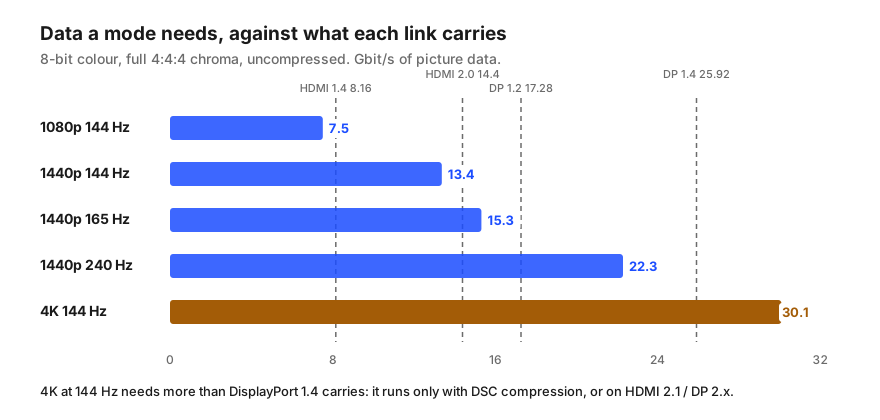
Connections are advertised by their raw signalling rate, but older HDMI and DisplayPort versions spend two of every ten bits on encoding, so the picture data they carry is 80% of the headline figure. VESA's own numbers for DisplayPort 1.4 show it: a total link of 32.4 Gbit/s and a payload of 25.92 Gbit/s. The same ratio turns HDMI 1.4's 10.2 Gbit/s into about 8.16, HDMI 2.0's 18 Gbit/s into 14.4, and DisplayPort 1.2's 21.6 Gbit/s into 17.28.
HDMI 2.1 raises the headline to 48 Gbit/s, and DisplayPort 2.0 and 2.1 use a more efficient coding with a maximum payload of 77.37 Gbit/s at their top rate. Those versions carry every mode in the table above. The catch is that both ends and the cable must support them; a 2.1 card into a 1.4 monitor input runs at 1.4.
| Link | Headline rate | Picture data | Source |
|---|---|---|---|
| HDMI 1.4 | 10.2 Gbit/s | about 8.16 Gbit/s | HDMI Licensing (10.2 Gbps since HDMI 1.3) |
| HDMI 2.0 | 18 Gbit/s | about 14.4 Gbit/s | HDMI Licensing |
| HDMI 2.1 | 48 Gbit/s | enough for 4K at 120 Hz | HDMI Licensing |
| DisplayPort 1.2 | 21.6 Gbit/s | about 17.28 Gbit/s | VESA |
| DisplayPort 1.4 | 32.4 Gbit/s | 25.92 Gbit/s | VESA |
| DisplayPort 2.0 / 2.1 | up to 80 Gbit/s | up to 77.37 Gbit/s | VESA |
The table says HDMI 1.4 has enough bandwidth for 1080p at 144 Hz, yet many 1080p gaming monitors still cap their HDMI input at 60 Hz. That is the monitor's design, not the cable. BenQ, for example, states that the HDMI port on several of its ZOWIE 144 Hz models has a maximum of 60 Hz at Full HD, and that 144 Hz needs the DisplayPort or dual-link DVI input.
So read the monitor's manual for the refresh rate each input supports. If the HDMI row says 60 Hz, no cable will change it; use DisplayPort.
Every box between the graphics card and the monitor is a link with its own limit, and the slowest one sets the ceiling. A USB-C dock that shares its connection between a display and USB data, a passive adapter from one standard to another, or a KVM switch can each hold a monitor at 60 Hz. Dell documents one version of this: with MST, which daisy-chains several monitors, enabled, the bandwidth is not enough for 4K at 60 Hz, and turning MST off in the monitor's menu fixes it.
The test is simple: connect the monitor directly to the graphics card with a DisplayPort cable, nothing in between. If the high refresh rate appears, the box you removed was the limit.
Turning on 10-bit colour or HDR raises the data rate by a quarter. At 1440p and 144 Hz the need goes from about 13.4 to about 16.7 Gbit/s — more than HDMI 2.0 can carry — which is why some setups drop to 120 Hz when HDR is switched on.
Display Stream Compression, or DSC, works the other way. It compresses the picture visually losslessly so a mode fits a smaller link; VESA says it can reduce the bandwidth needed by more than two-thirds. With 3:1 compression, 4K at 144 Hz drops from about 30.1 to about 10.0 Gbit/s. It needs support on both ends: NVIDIA, for example, supports DSC over DisplayPort 1.4 from its RTX 20 and GTX 16 series onwards.
Some monitors reach their highest refresh rate only with an overclock switch in their on-screen menu. ASUS documents this for its overclockable models: turn adaptive sync off, enable Over Clocking under the gaming menu, set the maximum refresh rate, then turn adaptive sync back on. Until the switch is on, Windows only sees the lower rates.
Dead pixels, backlight bleed and IPS glow are three different things with three different verdicts. Here is what to check, and what counts as a defect.
A screen's diagonal hides its shape. Width, height, area and pixel density for 24" to 49" monitors, and why a 34" ultrawide has less area than a 32".